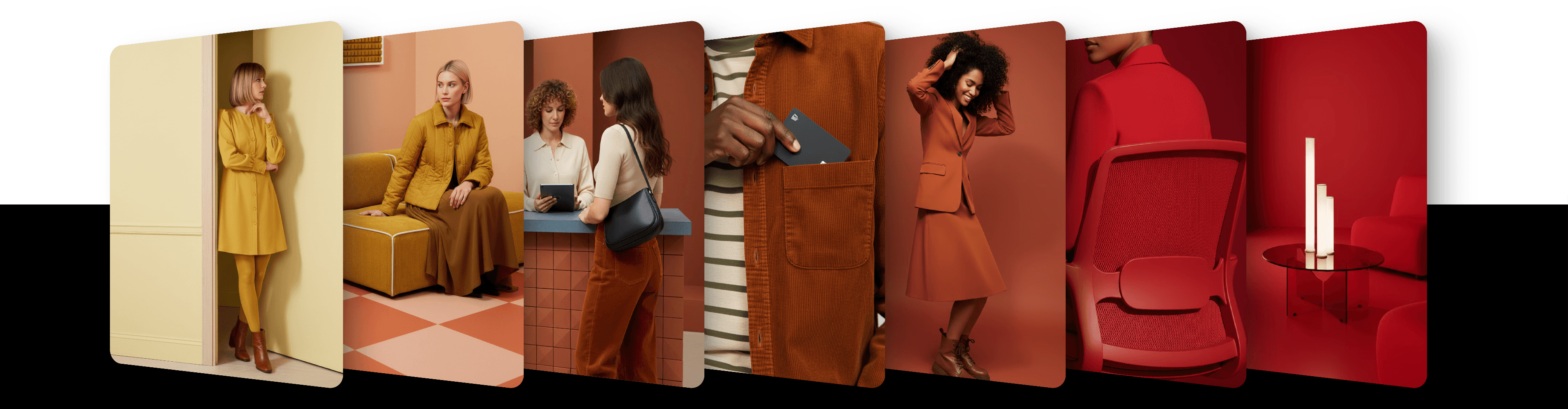
Use Sketch to guide image generation with structure and shape
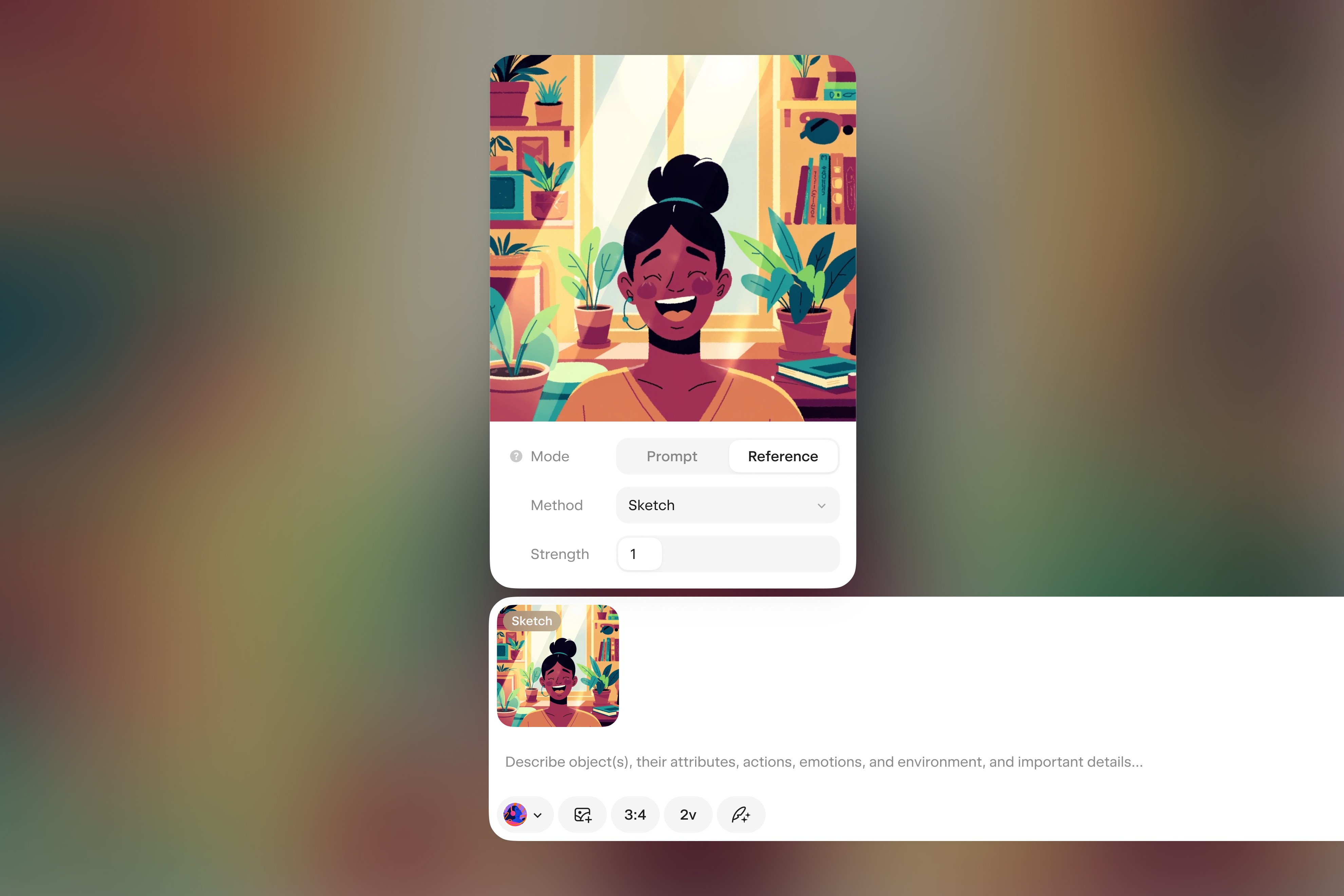
Use a sketch from your image to guide structure and layout. Control how closely the result follows the sketch with a simple strength slider.
Sketch lets you guide image generation using the structure of a reference image.
Instead of describing layout and pose in words, you can upload an image, extract a sketch from it, and use it as the base for generation. The result will follow that sketch more or less closely, depending on the strength setting you choose.
How to use it
Choose a model that supports Sketch: an Artist Style or one of your Private Styles (pick exactly 2.5 Style in the model menu, then choose the style with the button next to it), or Flux Dev under More models
Add your image with the + tile at the start of the image row, or drag it onto the page or paste it
Click the image's thumbnail and set Role to Reference and Method to Sketch
Set the Strength (default is 3)
Click the round arrow button to generate
How it works
The uploaded image is converted into a sketch of its outlines, which is then used to guide the shape and structure of the generated image.
Sketch strength ranges from 1 (very loose interpretation) to 5 (almost exact copy). Higher strength values will keep the layout of the sketch more strictly, which is helpful if your sketch includes important details.
If the image used for the sketch has incorrect proportions, strange lines, or anatomy that doesn't match the model's training, it may override the model's intended style and lead to distorted results, especially at high strength.
Your prompt should match the sketch. For example, if the sketch shows a tree but the prompt says "a cat," the output might look confusing.
We recommend using a reference image with the same aspect ratio as the final output. If the proportions don't match, the sketch will be scaled and fitted into the frame while keeping its original aspect ratio, which might change the composition.
You can use one sketch per request, and it can be combined only with Image to Prompt images. If you add another kind of reference image or a second sketch, the image you added later is dimmed and left out of the request.
Model compatibility
Sketch works with Artist Styles, Private Styles and the Flux Dev Base Model. Other Base Models and video models don't support it: for them, Sketch is greyed out in the Method menu. Sketch is not available on Exactly 1.0 Agentic, which takes only its own Style references, or in the Editing tab.
Updated
23 October 2026